Logging in & UI basics
Sign in, switch language, and find your way around the shared application frame.
Logging in
- Open the eClear portal in your browser and accept or decline cookies.
- Enter your e-mail address and password.
- Click Anmelden / Sign in.
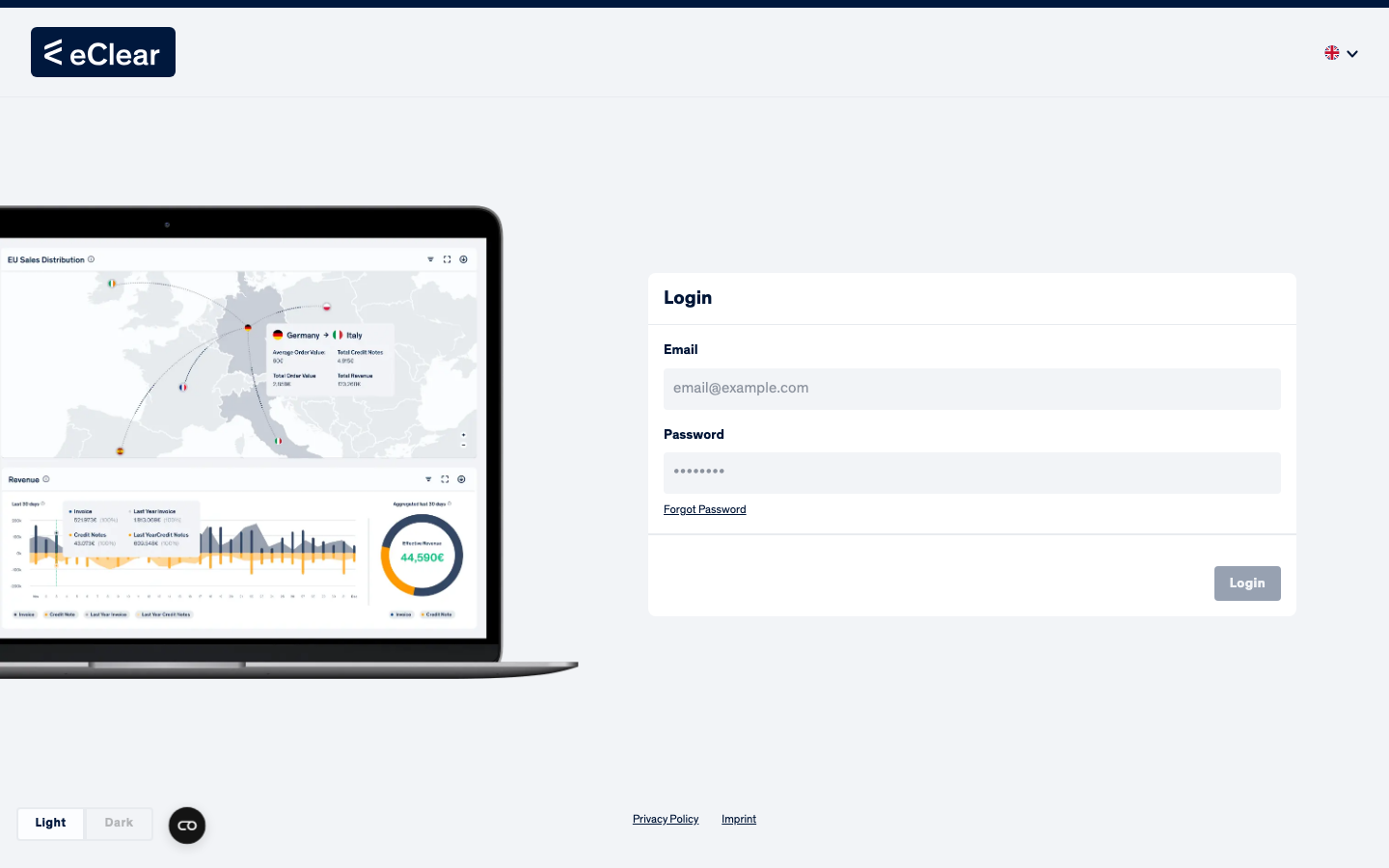
Switching the language
The portal starts in German. Use the flag selector at the top right of the login form (and later the flag selector inside the application) to switch between German and English. Table content in the assignment screens has its own language selector, so you can e.g. use an English UI with German product texts.
After signing in you land in the module you used last. Click VAT classification in the left navigation to open this module.
A note on the name
Depending on your version, this module may appear as VATRules & CustomsAI in the left navigation and breadcrumb. It is the same module this guide refers to as VAT classification throughout.
Finding your way around
Every screen shares the same frame:
| Element | Where | What it does |
|---|---|---|
| Module navigation | left sidebar | Switches between eClear modules (Dashboard, FileVAT, ClearVAT, CheckVAT, ClearCustoms, VAT classification). Modules you have not subscribed to are greyed out. |
| Session timer | top right (e.g. 29:40) | Counts down your session. When it reaches zero you are logged out automatically; any activity resets it. |
| Date | top right | Today's date. |
| Full-screen button | top right monitor icon | Toggles full-screen mode. |
| Notifications bell | top right | Opens recent system notifications. |
| User menu | top right avatar | Manage Profile and Logout. |
| Light / Dark | bottom left | Switches the colour theme. |
| Breadcrumb | top of the content area | Shows where you are inside the module and lets you jump back, e.g. VAT classification → Bulk Upload. |
Session timeout
The session timer at the top right (about 30 minutes) logs you out when it runs down. Long forms such as manual product creation are not auto-saved, so save your work before taking a break.