The Dashboard
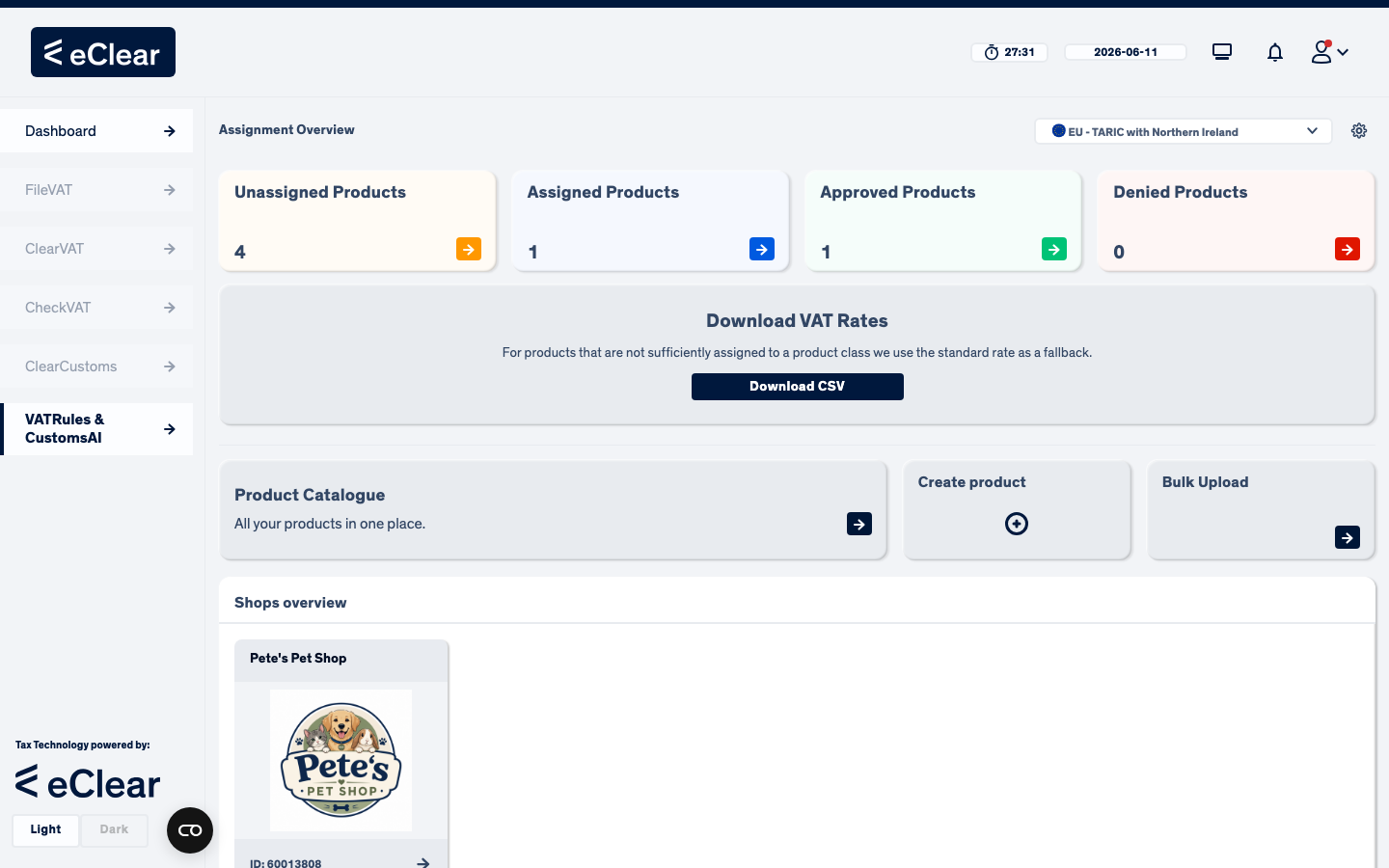
The Assignment Overview: status tiles, the taxonomy selector and the action cards.
The dashboard (called Assignment Overview) is the home screen of VAT classification. It answers one question at a glance: how far along is the classification of my products?
The taxonomy selector
The dropdown at the top right of the Assignment Overview selects the product taxonomy all the numbers on the screen refer to. It is labelled by region, but it really chooses which taxonomy you are working on:
- EU — TARIC with Northern Ireland
- CH — TARES
- GB — UKGT without Northern Ireland
Which entries you see depends on what you have subscribed to — you may see only some of them, and if you are subscribed to a single taxonomy you may not see the selector at all. A product is classified independently on each taxonomy, so the same product can be approved on the EU TARIC while still unassigned on the Swiss TARES. The gear icon next to the selector takes you to the module Settings.
The four status tiles
Each tile shows how many products are currently in that stage and is clickable — it opens the corresponding filtered list:
| Tile | Meaning | Click takes you to |
|---|---|---|
| Unassigned Products (yellow) | Products without a product class, including rejected ones that need re-work | Unassigned view |
| Assigned Products (blue) | Auto-assignment found a class; your review is needed | Assigned view |
| Approved Products (green) | Classification confirmed by a human — done | Approved view |
| Denied Products (red) | Excluded from classification for compliance reasons | Denied view |
Reading the example above
4 products still need a class (one of them was rejected), 1 waits for approval, 1 is fully approved. The goal is to move everything into the green tile.
The action cards
- Download VAT Rates — exports a CSV with the VAT rate of every product in every country. Products that are not sufficiently classified fall back to the standard rate. See Getting VAT rates.
- Product Catalogue — all your products in one place: search, edit, delete. See The Product Catalogue.
- Create product — opens the manual product creation dialog. See Creating a single product.
- Bulk Upload — imports up to 500 products from a CSV/XLSX file. See Bulk upload.
Shops overview
The bottom of the dashboard lists your shops with their logos and IDs. Clicking a shop opens the Product Catalogue filtered to that shop. Local products always belong to exactly one of these shops; global products can be linked to any number of them.