Settings
Tune the Display API statuses and the auto-assignment behaviour.
Open the settings via the gear icon next to the taxonomy selector on the dashboard (or VAT classification → Settings).
Tenant-wide & auto-saved
Everything on this page applies to all of your shops and users — there are no per-shop settings. Changes are saved automatically when you leave the page.
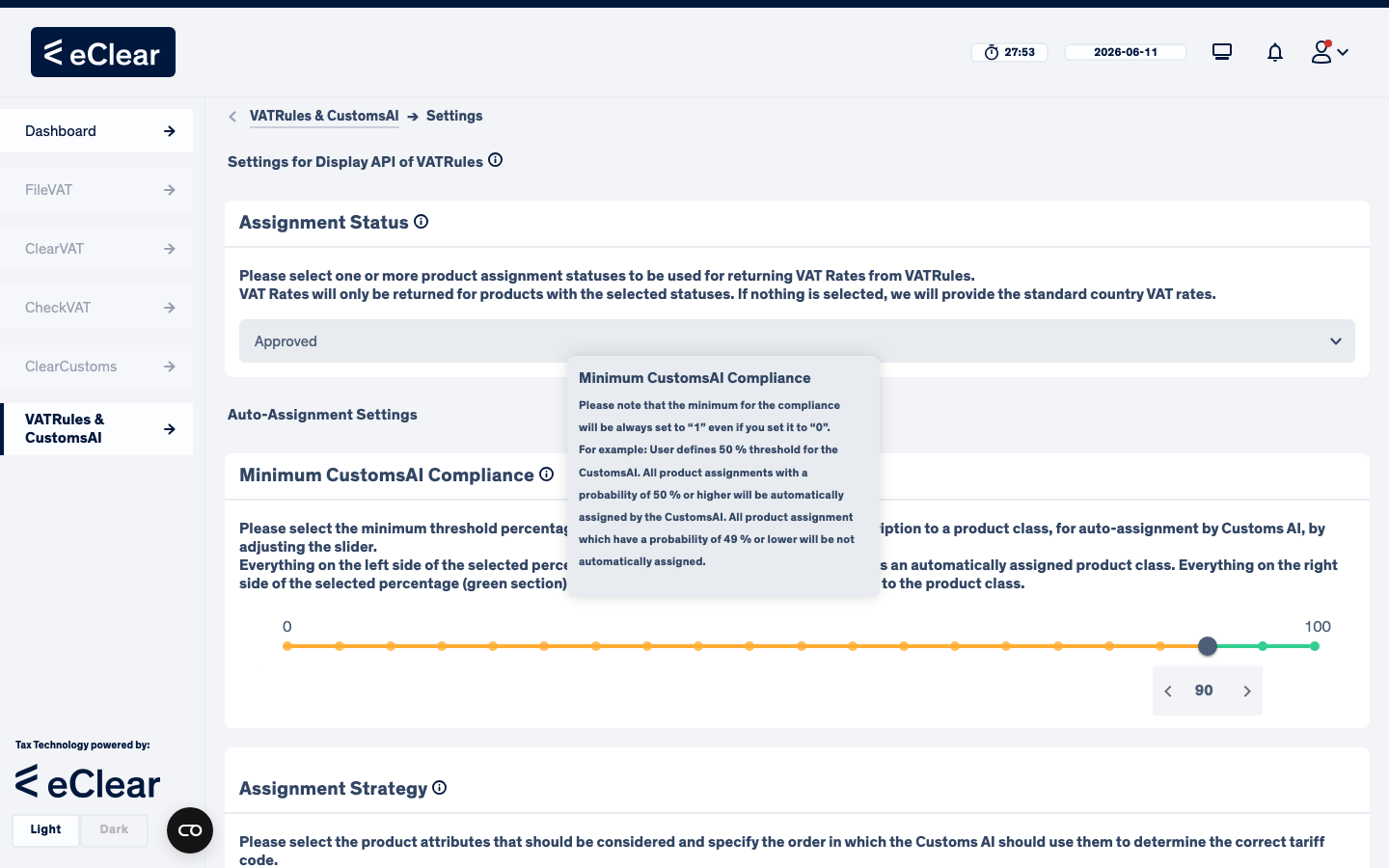
Settings for Display API of VATRules
Assignment Status — choose which product statuses are allowed to return their classified VAT rates (via the Display API and the CSV export):
- Default: Approved only — rates are returned only after human review.
- Adding e.g. Assigned lets auto-assigned products return classified rates before review — faster coverage, less control.
- Products whose status is not selected fall back to the standard country rate (
FALLBACKin the CSV export).
Auto-Assignment Settings
Minimum CustomsAI Compliance — the confidence threshold (in %) auto-assignment's machine-learning model must reach before its prediction is accepted as an automatic assignment:
- Suggestions left of the threshold (yellow zone) are not auto-assigned — the product stays Unassigned and waits for you (you will still see the suggestions in the tariff tree dialog).
- Suggestions right of the threshold (green zone) are auto-assigned.
- Lower threshold = more automation, more review risk. Higher threshold = fewer but safer auto-assignments. The minimum is always 1%.
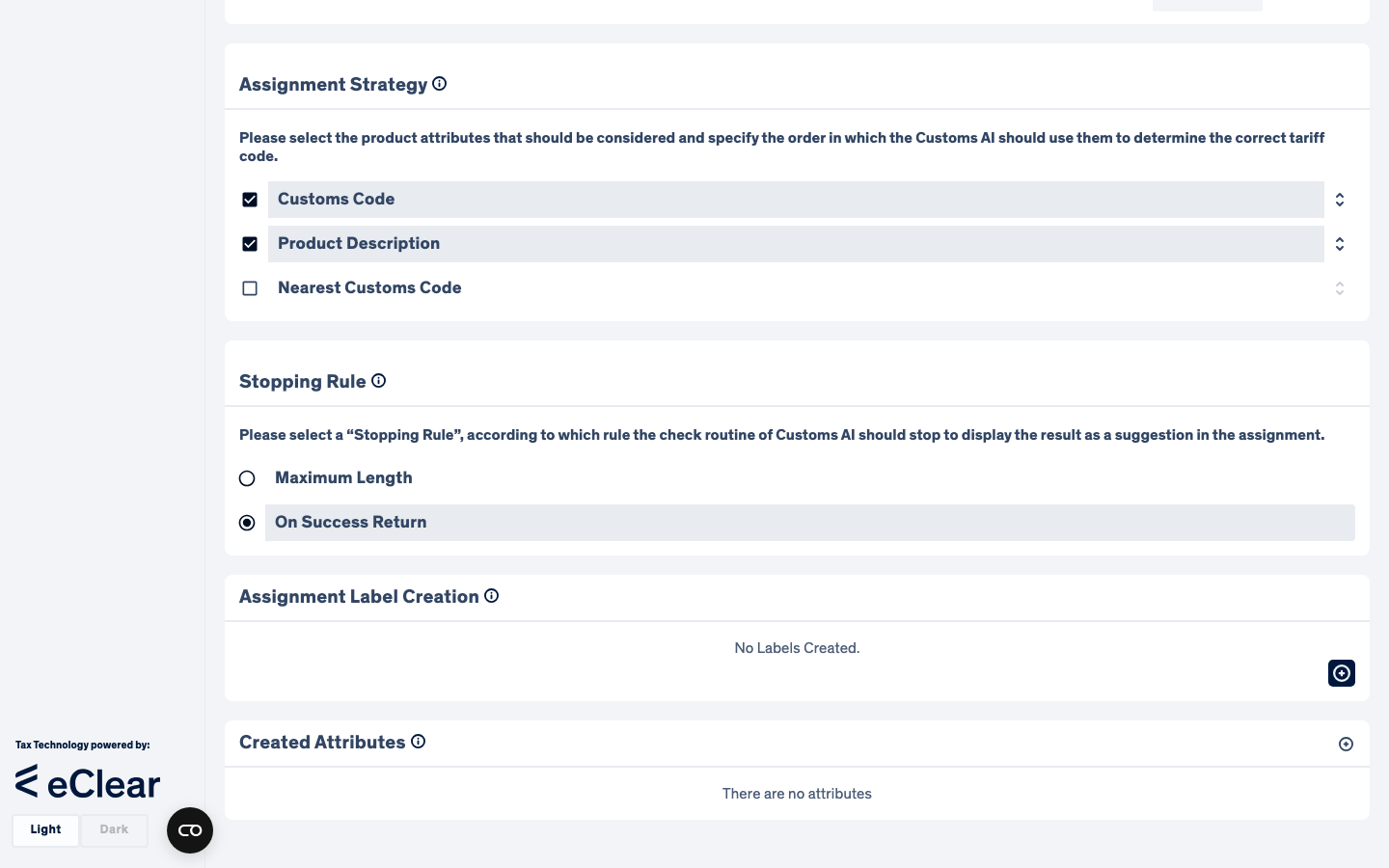
Assignment Strategy — tick which product attributes auto-assignment may use, and drag them into priority order:
| Strategy | Uses |
|---|---|
| Customs Code | the customs/TARIC/UKGT codes you provided on the product — used directly |
| Product Description | machine-learning text matching on product name, description and tags |
| Nearest Customs Code | like Customs Code, but if your code does not exist on the tariff, the closest existing code is used |
The default is Customs Code → Product Description: an explicit code you provide always wins over an AI guess. Unticking everything means fully manual classification.
Stopping Rule — what happens when several strategies are active:
- On Success Return (default) — the first strategy in the priority order that finds a class wins.
- Maximum Length — all strategies run and the longest (most specific) code wins.
Labels and attributes
Two more sections on the settings page:
- Assignment Label Creation — define your own labels which you can attach to assignments (e.g. "needs tax-team check") and filter by in the assignment views.
- Created Attributes — define merchant product attributes: custom fields (text/number, optionally language-specific) that you can fill per product, import as bulk-upload columns, and use in custom assignment rules.