Assigning a product class
Give an unassigned product the right product class using the tariff tree.
This is the core task of VAT classification: give an Unassigned (or Rejected) product the right product class. You will usually start from the yellow Unassigned Products tile on the dashboard.
Step 1 — Open the Unassigned view
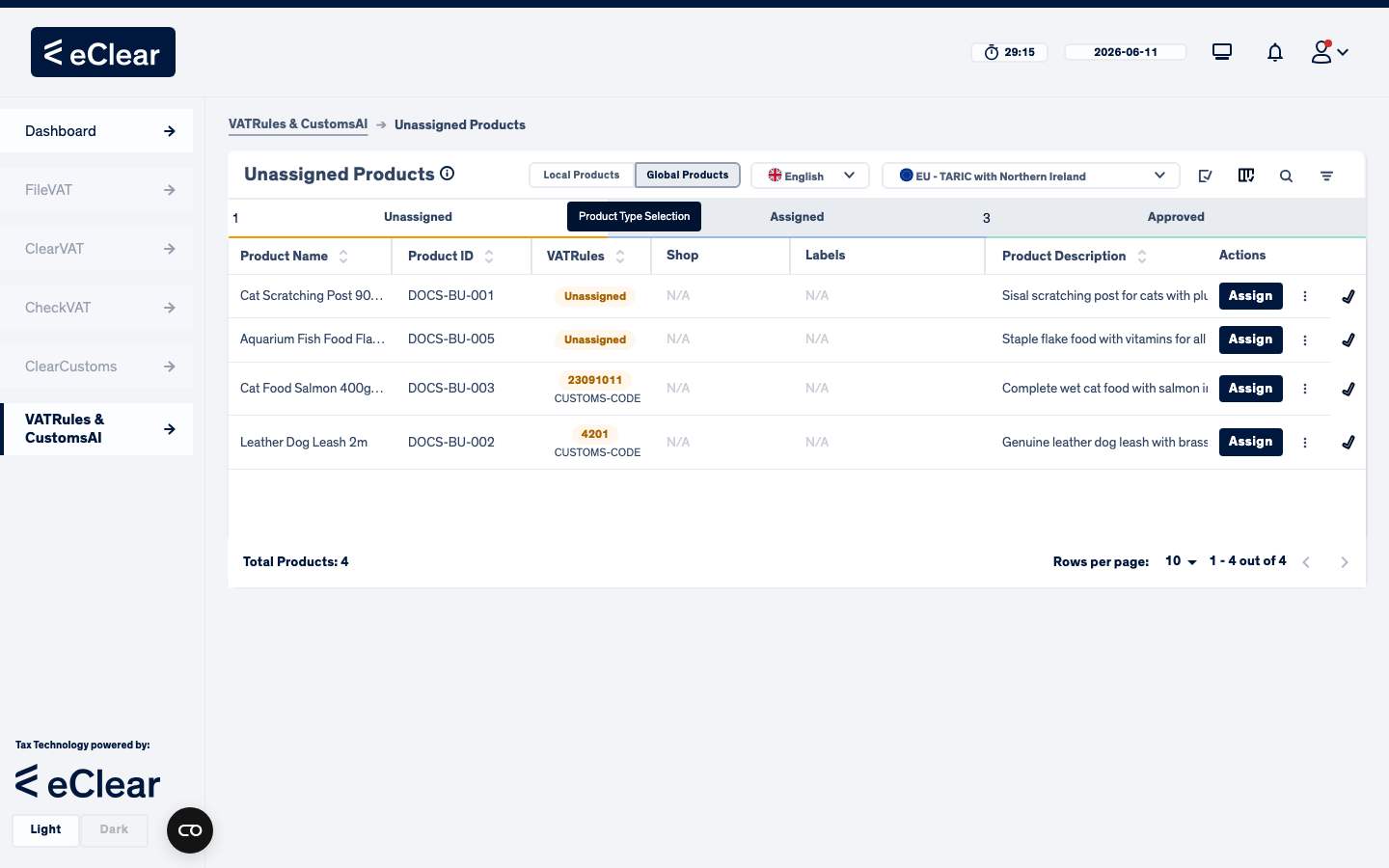
Pick the Local/Global view, then click Assign on the product you want to classify.
Step 2 — Work with the tariff tree dialog
The Assign dialog is where your product meets the product taxonomy:
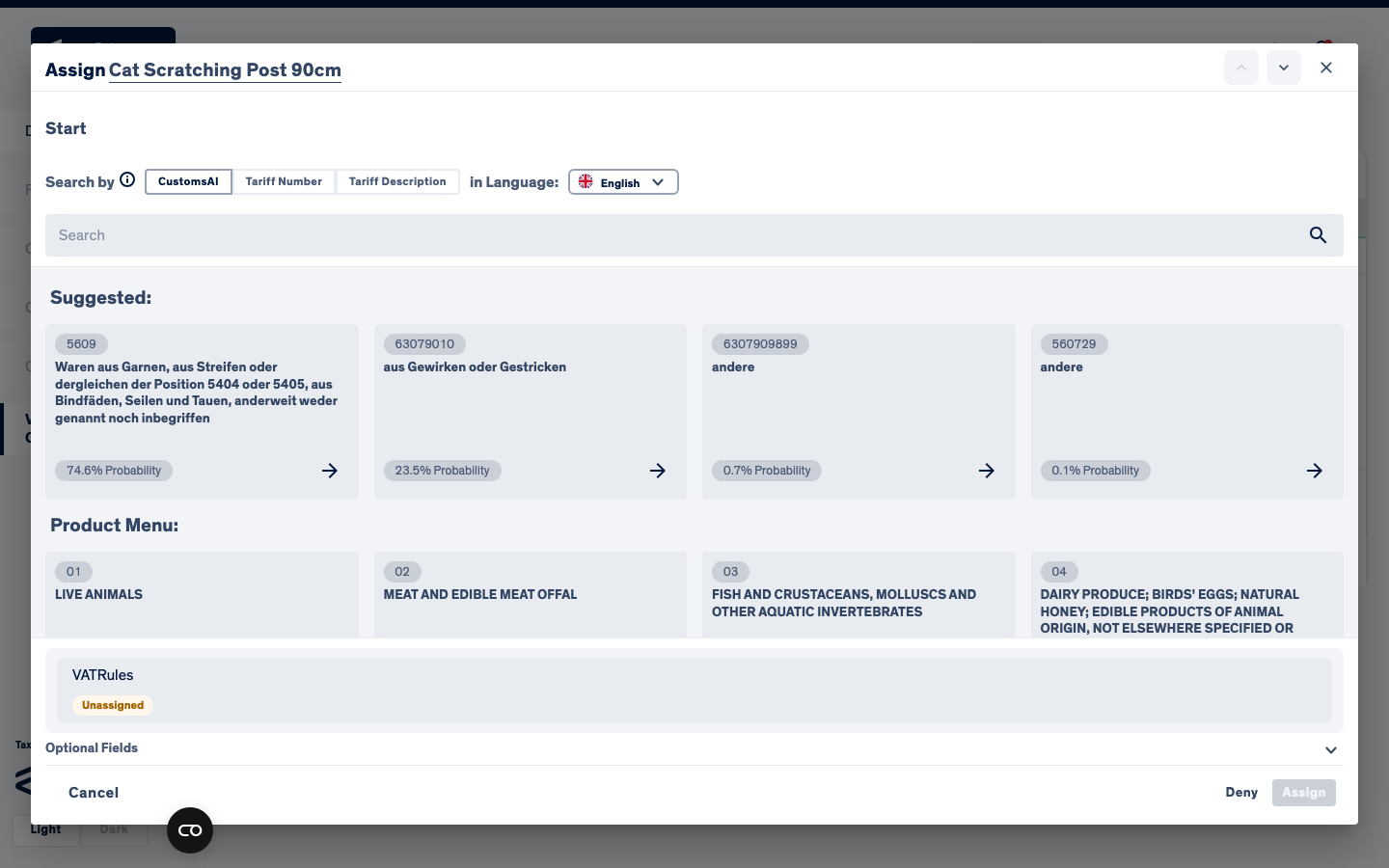
From top to bottom:
- Breadcrumb (
Start → …) — your current position in the tariff tree. Click any part to go back up. - Search by — three search modes:
- CustomsAI — sends your search text to the matching model and returns the best matching product classes. Many languages are supported, but German works best, followed by English, so prefer a German search term when you can.
- Tariff Number — search by class code (e.g.
4201). - Tariff Description — text search in the official class descriptions, in the selected language.
- Suggested — cards with auto-assignment's suggestions for this product (based on its name, description and tags), each with a probability. This is usually the fastest path: if the top suggestion looks right, just click it.
- Product Menu — the tariff tree itself (chapters 01–99). You can always browse manually: click a chapter, then drill down level by level.
Step 3 — Select the class
Clicking a suggestion card or tree node moves the breadcrumb to that class:
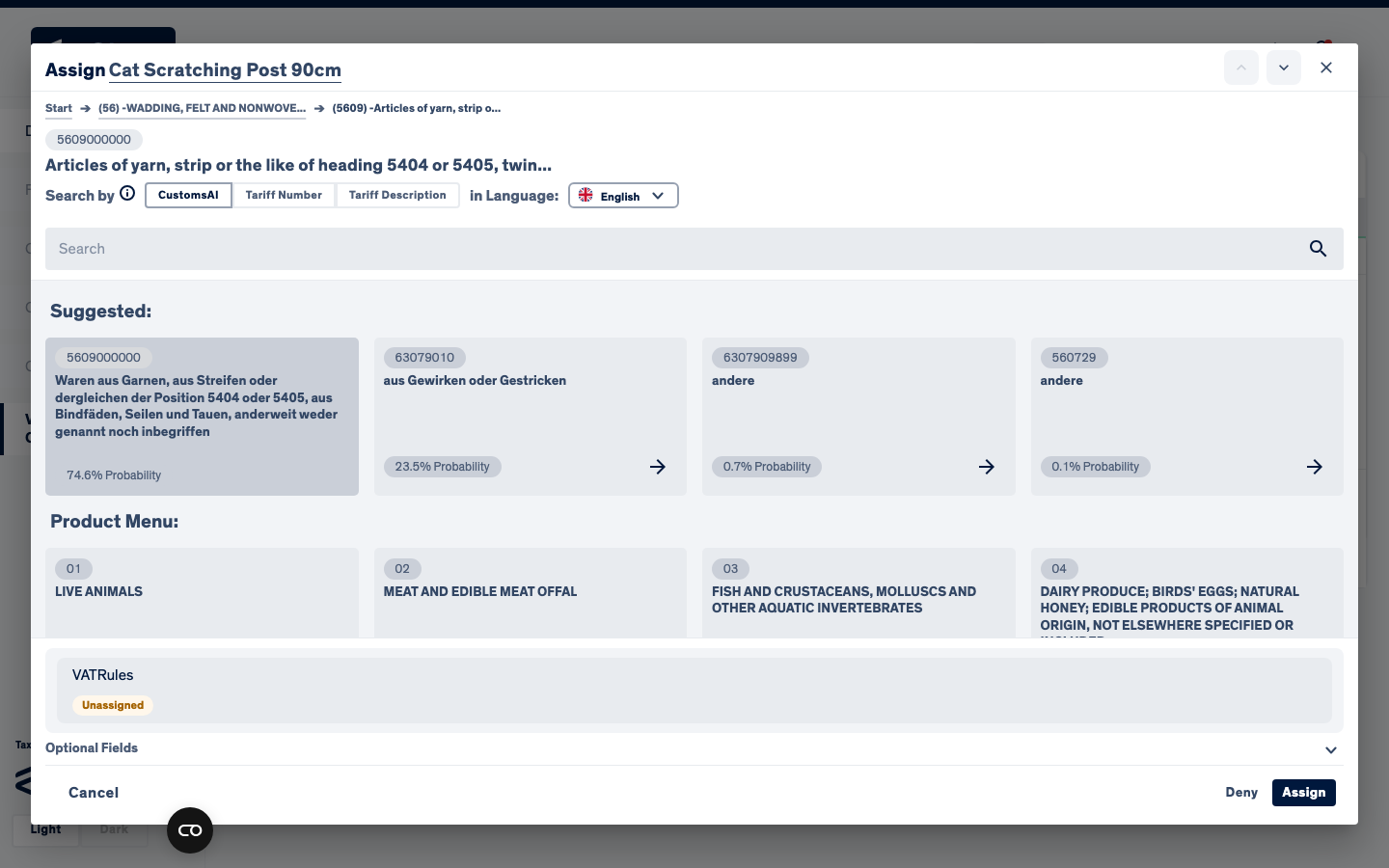
The currently selected class and its code are shown above the search bar (here 5609000000). The status bar at the bottom shows the product's current state per service.
How deep do I have to go?
Select a class that is specific enough to determine VAT rates for all countries — as a rule of thumb, a full-length code (10 digits on TARIC/UKGT, 8 on TARES) or one of eClear's extended classes. If the class is too coarse, the assignment will end up Rejected rather than Approved and you can refine it later.
Step 4 — Assign
Optionally expand Optional Fields to record a reason (it appears later in the history) and labels. Then click Assign.
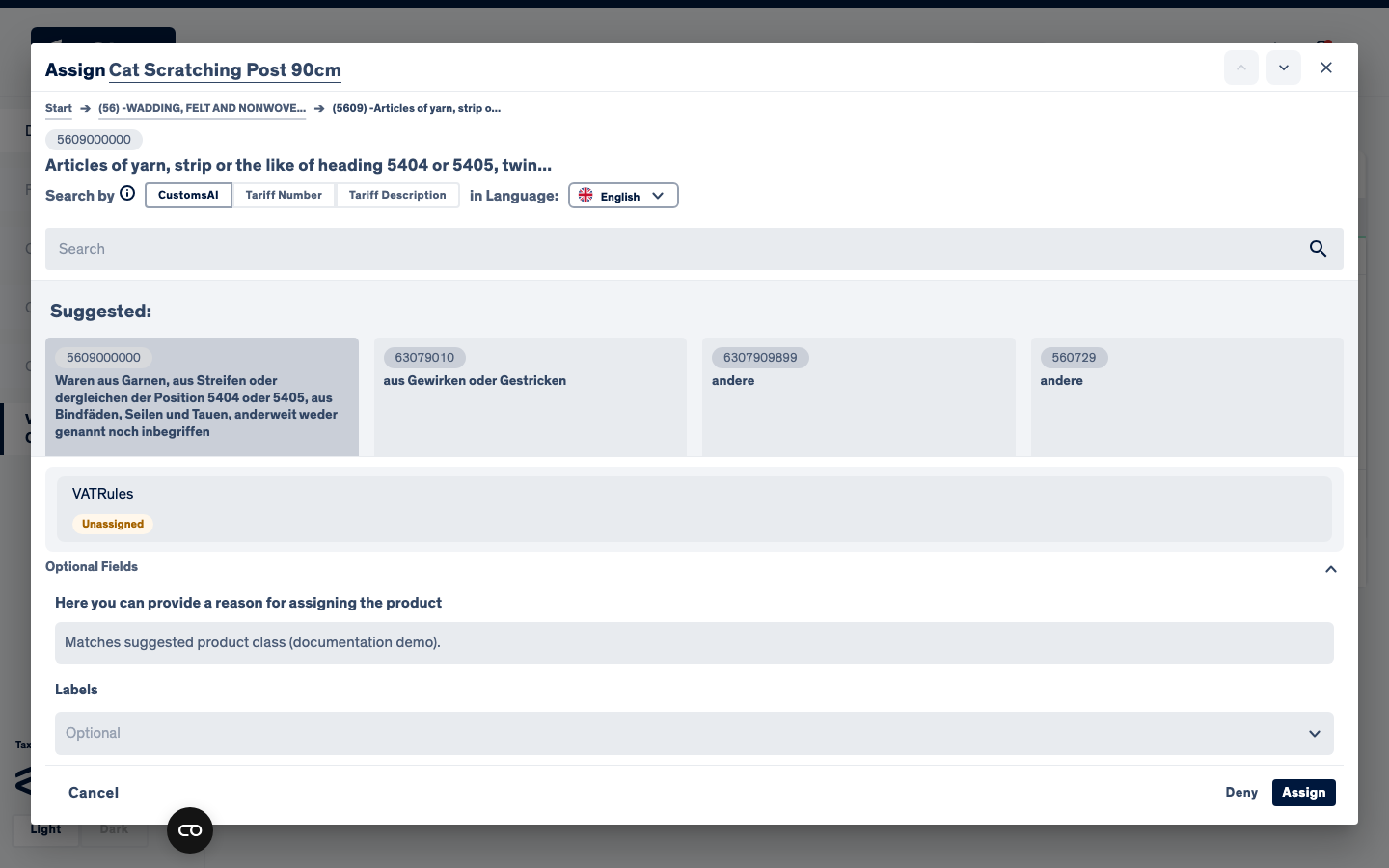
What happens depends on how specific the class is:
- Sufficient class → Approved. If the class is specific enough to determine VAT rates for all countries, the status becomes Approved straight away. This is always the case once you reach an end node — a class with no further sub-classes left to choose. In other words, when there is nothing deeper to pick, the classification is complete and the product is approved.
- Insufficient class → Rejected. If the class is still too coarse for some countries, the status becomes Rejected; the product stays in the Unassigned view with its partial code shown as a chip, and you can refine the classification any time.
Example
In the screenshot above, assigning the suggested 10-digit class 5609000000 (an end node) moved "Cat Scratching Post 90cm" straight to Approved — visible afterwards in the green Approved Products view.
Bulk assignment
Tick several products with the multi-select (pencil icon) and use the bulk action bar to assign/deny many products at once. The same tariff tree dialog opens; the selected class is applied to all ticked products.