Getting VAT rates
Get the VAT rate of every product in every country — as a CSV export, from the vat-rates REST resource, or in the product detail drawer.
The whole point of classifying products: getting the right VAT rate per product per country. The UI offers a one-click CSV export; system integrations retrieve the same rates programmatically from the vat-rates REST resource — query one product in one location, or a batch of products and countries at once (see the VAT classification API documentation).
Exporting the CSV
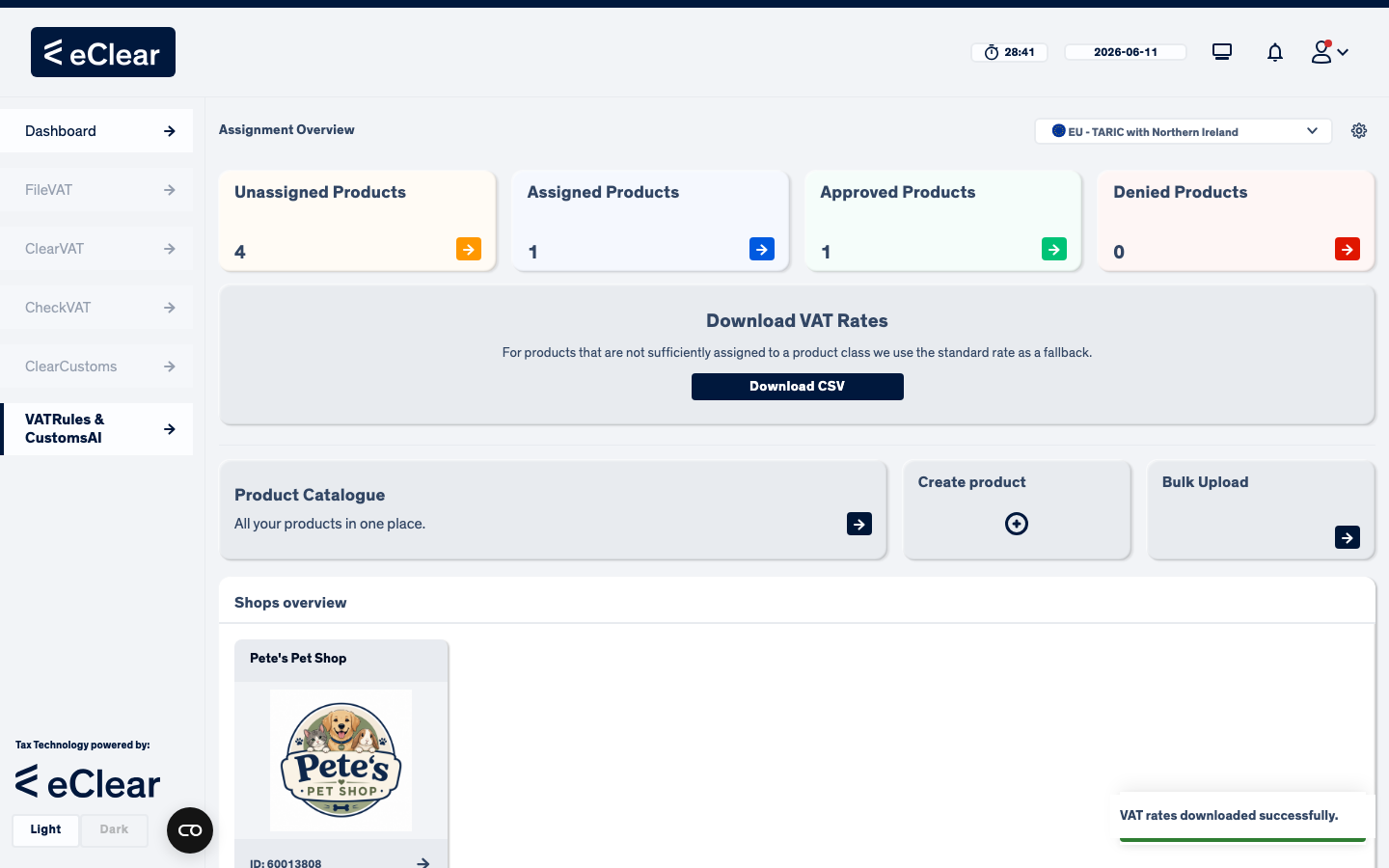
On the Dashboard, find the Download VAT Rates card and click Download CSV. The file is prepared in the background and the download starts automatically.
Understanding the file
One row per product per country:
ProductName,ProductId,Country,Rate,Type,Source,ShopId
Premium Dog Food Chicken 2kg,DOCS-LP-001,AT,20,STANDARD,FALLBACK,60013808
Premium Dog Food Chicken 2kg,DOCS-LP-001,BE,21,STANDARD,FALLBACK,60013808
Premium Dog Food Chicken 2kg,DOCS-LP-001,CH,8.1,STANDARD,FALLBACK,60013808| Column | Meaning |
|---|---|
Country | ISO country code the rate applies to |
Rate | the VAT rate in percent |
Type | rate type, e.g. STANDARD or REDUCED |
Source | how the rate was determined — see below |
ShopId | the shop the product belongs to |
The Source column tells you whether classification has paid off yet:
- FALLBACK — the product is not sufficiently classified (e.g. still Unassigned), so the country's standard rate is used as a safe default.
- A rate derived from the product class — products that are classified (and have a status you allow in Settings) get their actual rate, including reduced rates where the product class qualifies (e.g. foodstuffs).
Tip
A quick quality check: filter the CSV for FALLBACK. Those are exactly the products where finishing the assignment workflow can still change (usually lower) the applied VAT rate.
Checking one product's rate in the UI
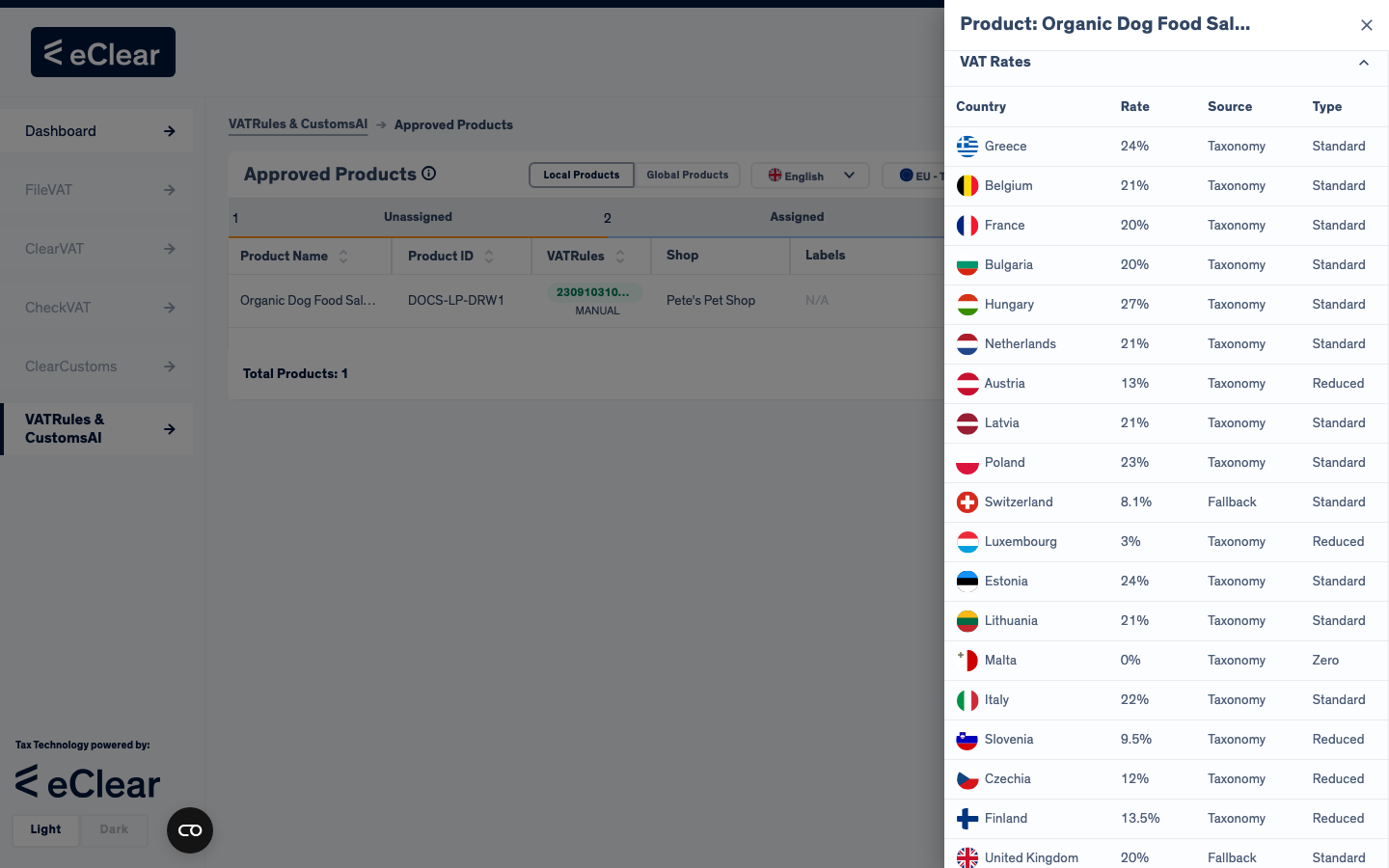
You don't always need the full export. To see the rates for a single product, open the assignment list and click anywhere on the product's row except the action button on the right. A detail drawer slides in from the right-hand side; scroll down to the VAT Rates section and expand it to see the rate, type and source for every country — the same four columns as the CSV.
Best viewed on an approved product
This works for a product in any status, but an Approved product shows its real, classified rates (with the source coming from eClear's taxonomy). A product that is not yet sufficiently classified shows the country's standard rate as a FALLBACK, exactly like the CSV export. The drawer can only load rates for a product that belongs to a shop.
Which products return "real" rates?
By default only Approved products return their classified rates — in both the CSV export and the vat-rates REST resource. You can widen this in Settings — e.g. also return rates for Assigned products before human review.