The Product Catalogue
Search, inspect, edit and delete the products in your catalogue.
The Product Catalogue (screen title: Product Overview) lists all your products — independent of their classification status. Use it to search, inspect, edit and delete products.
Open it from the dashboard card Product Catalogue (all shops) or by clicking a specific shop in the Shops overview (that shop's products only).
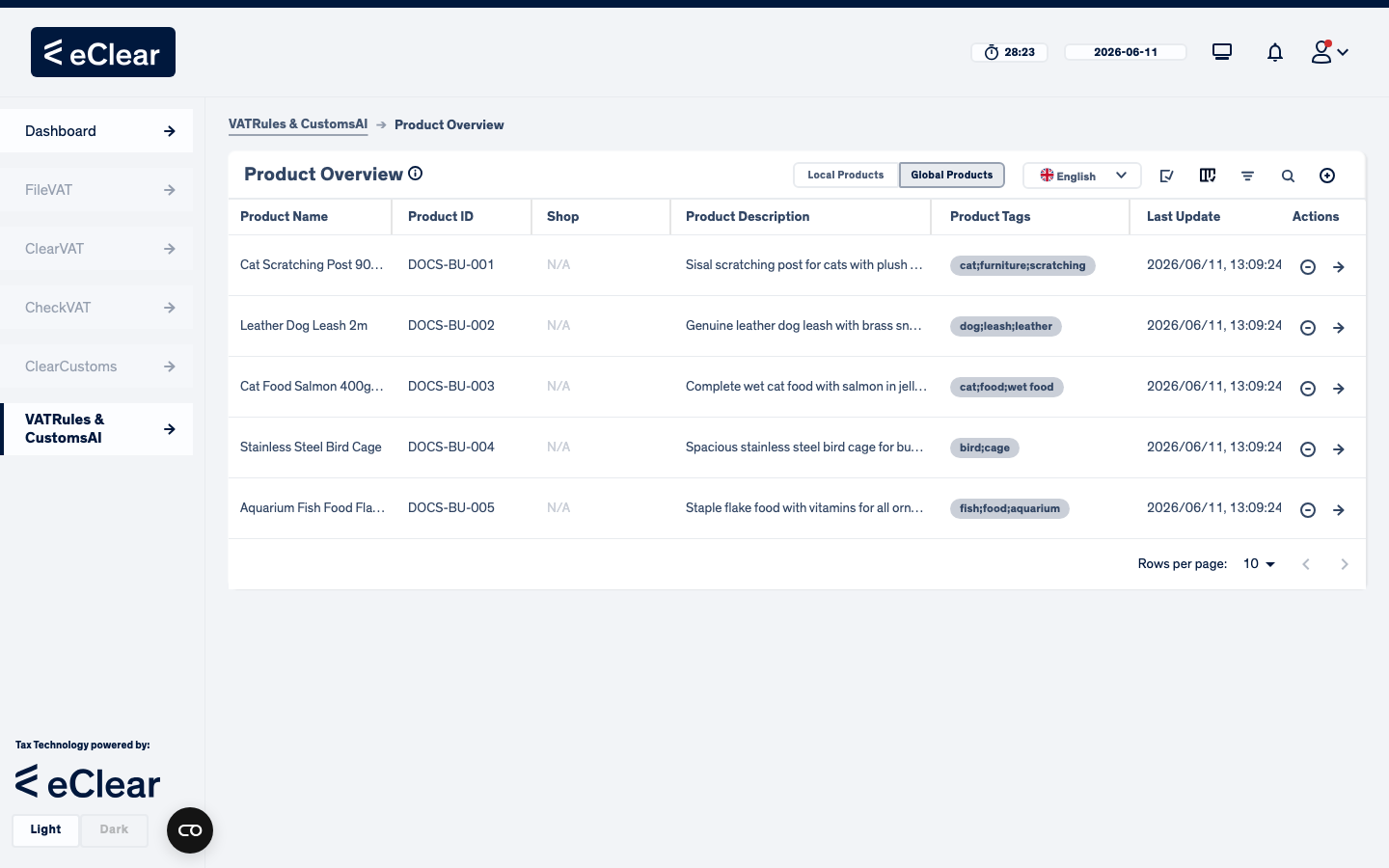
Switching between local and global products
The Local Products / Global Products toggle at the top switches the view. Local products show their shop in the Shop column; global products are listed once regardless of how many shops they are linked to.
Searching and filtering
The icon bar at the top right offers:
| Icon | Function |
|---|---|
| magnifier | free-text search bar |
| funnel | filters — by keyword, Product ID, Product Name, Product Tags and Last Update date |
| columns | column selection — show/hide columns, reset widths |
| pencil/check | multi-select — tick several products for bulk actions |
| plus | create product shortcut |
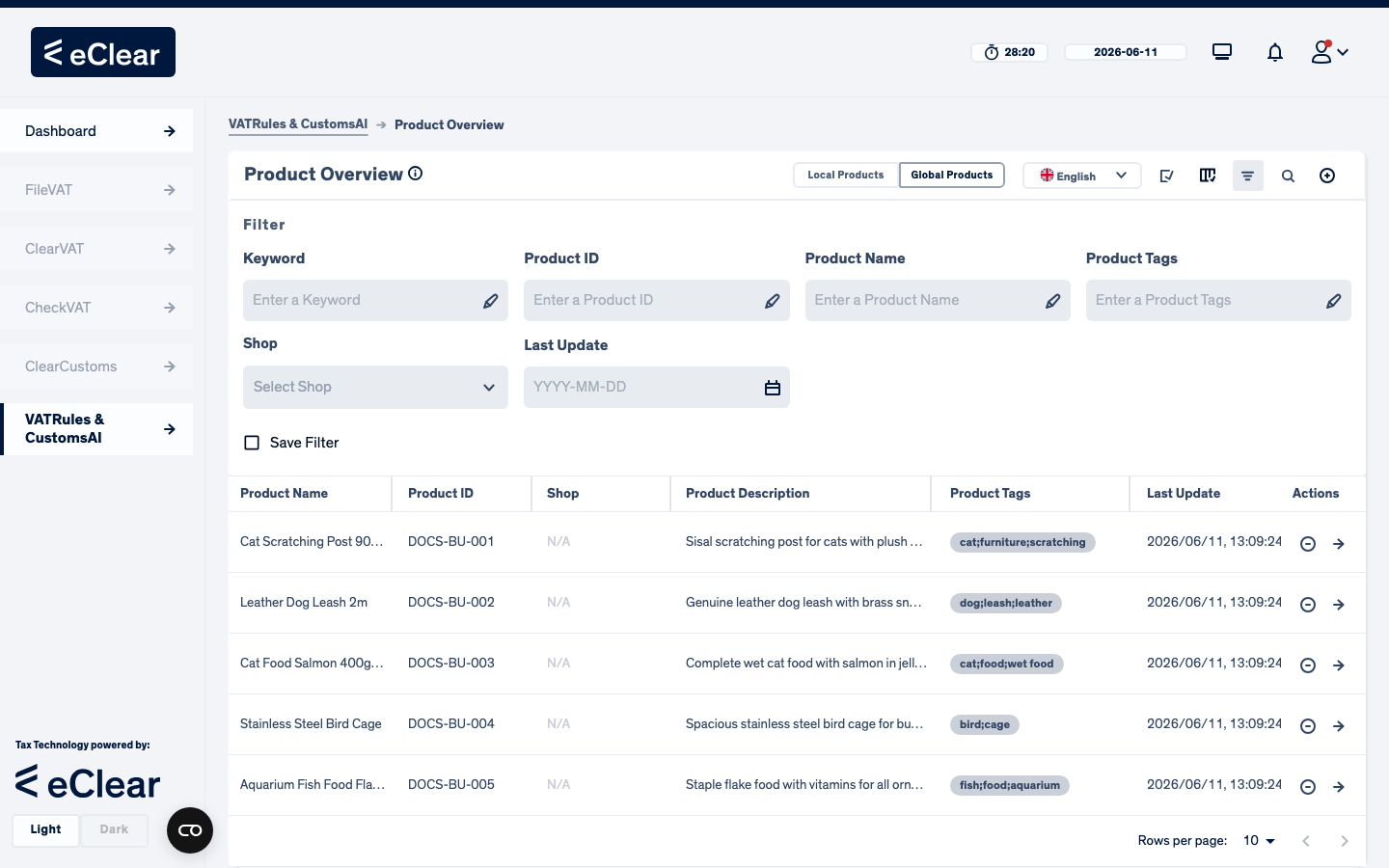
Filters can be combined and cleared with Clear Filters. The active filter chips stay visible above the table. You can also save a filter set with Save Filter.
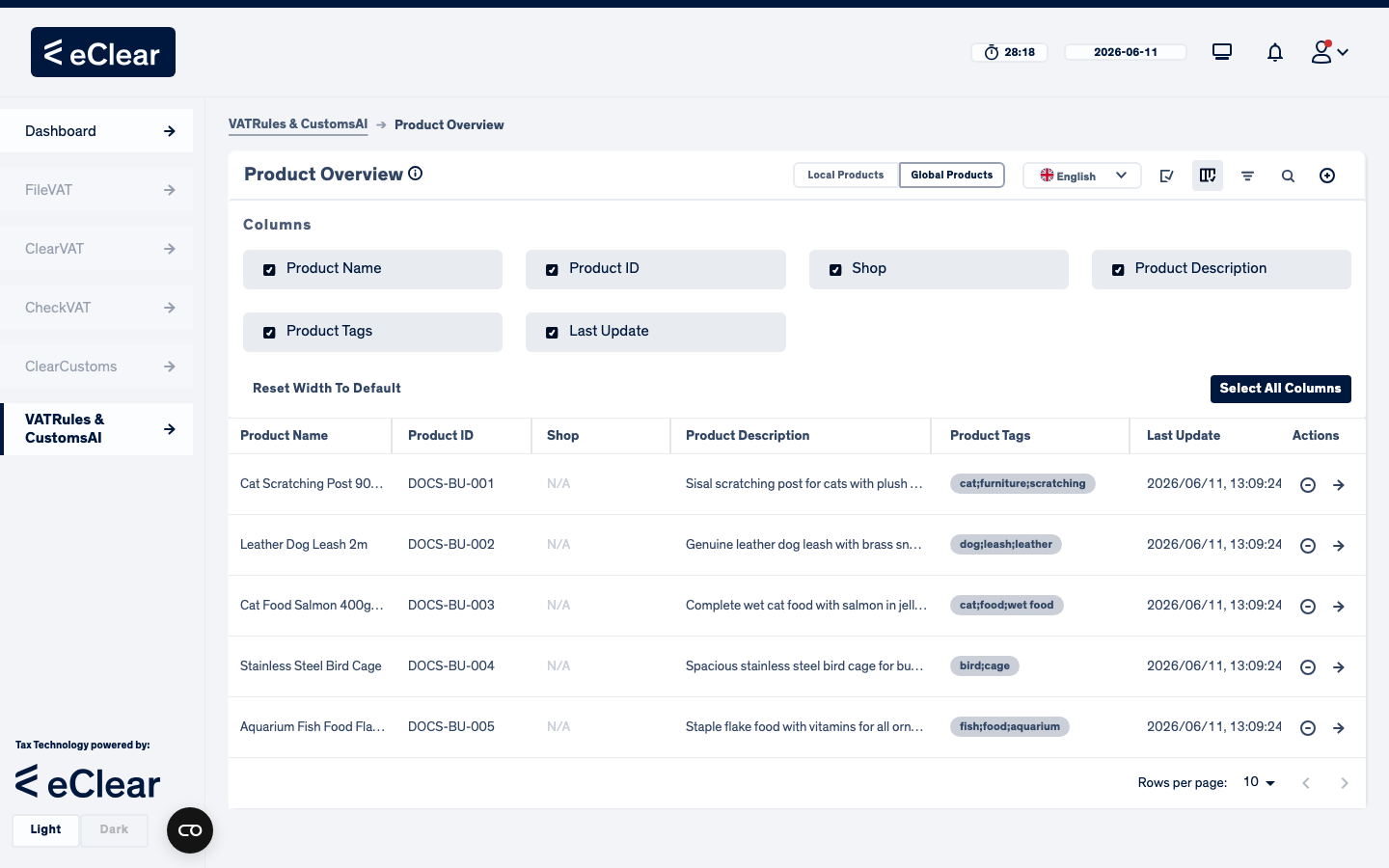
Viewing & editing a product
Hover over a row to reveal the row actions:
- Details (file icon) — opens the read-only Product Details page in a new tab, with all master data, customs information and the per-service assignment status:
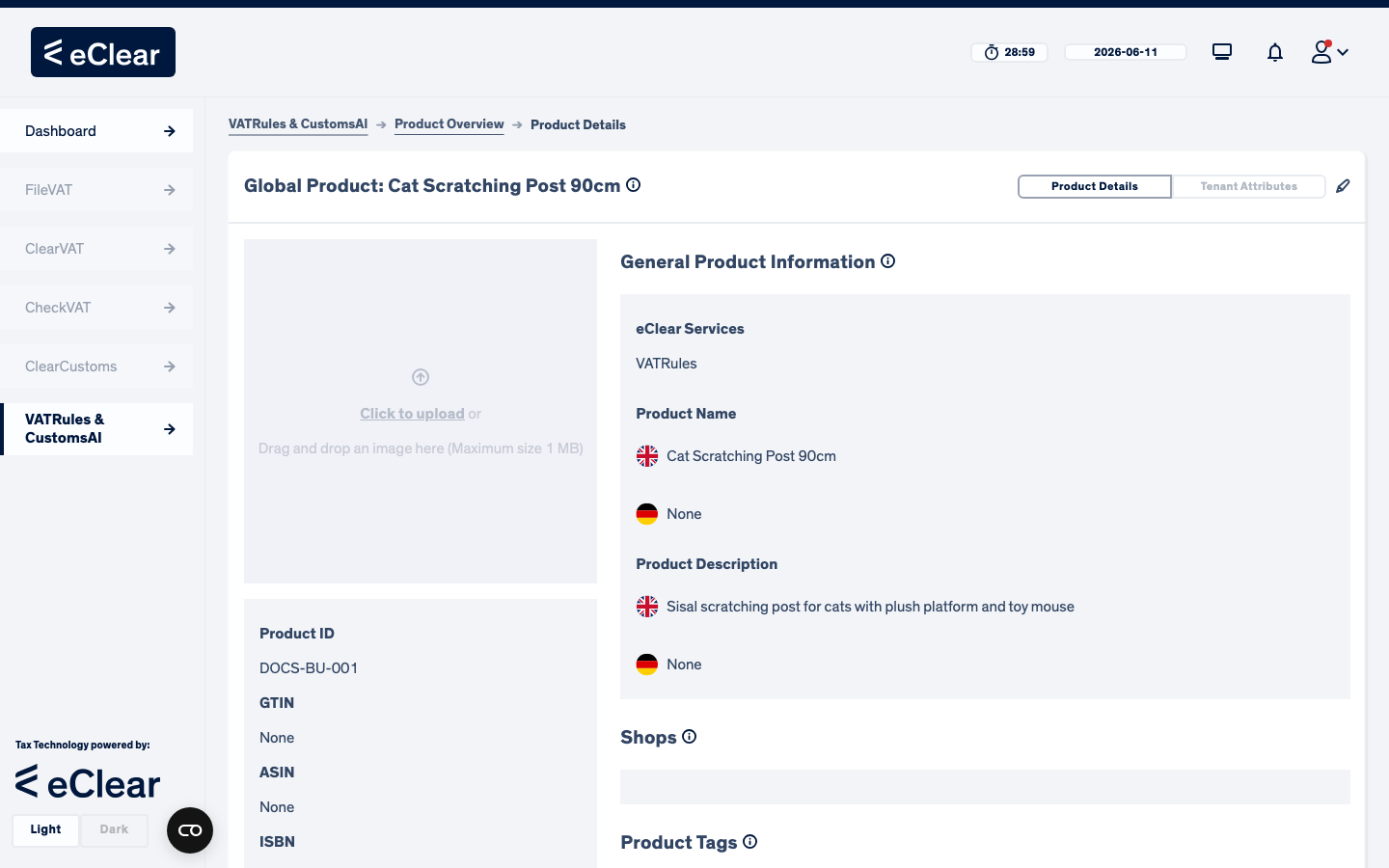
From the details page you can switch to edit mode to change master data (name, description, tags, customs codes, shop links, image). Auto-assignment runs only when a product is first created — editing a product later never changes its assignment, so any re-classification after an edit is done manually in the assignment workflow.
Deleting products
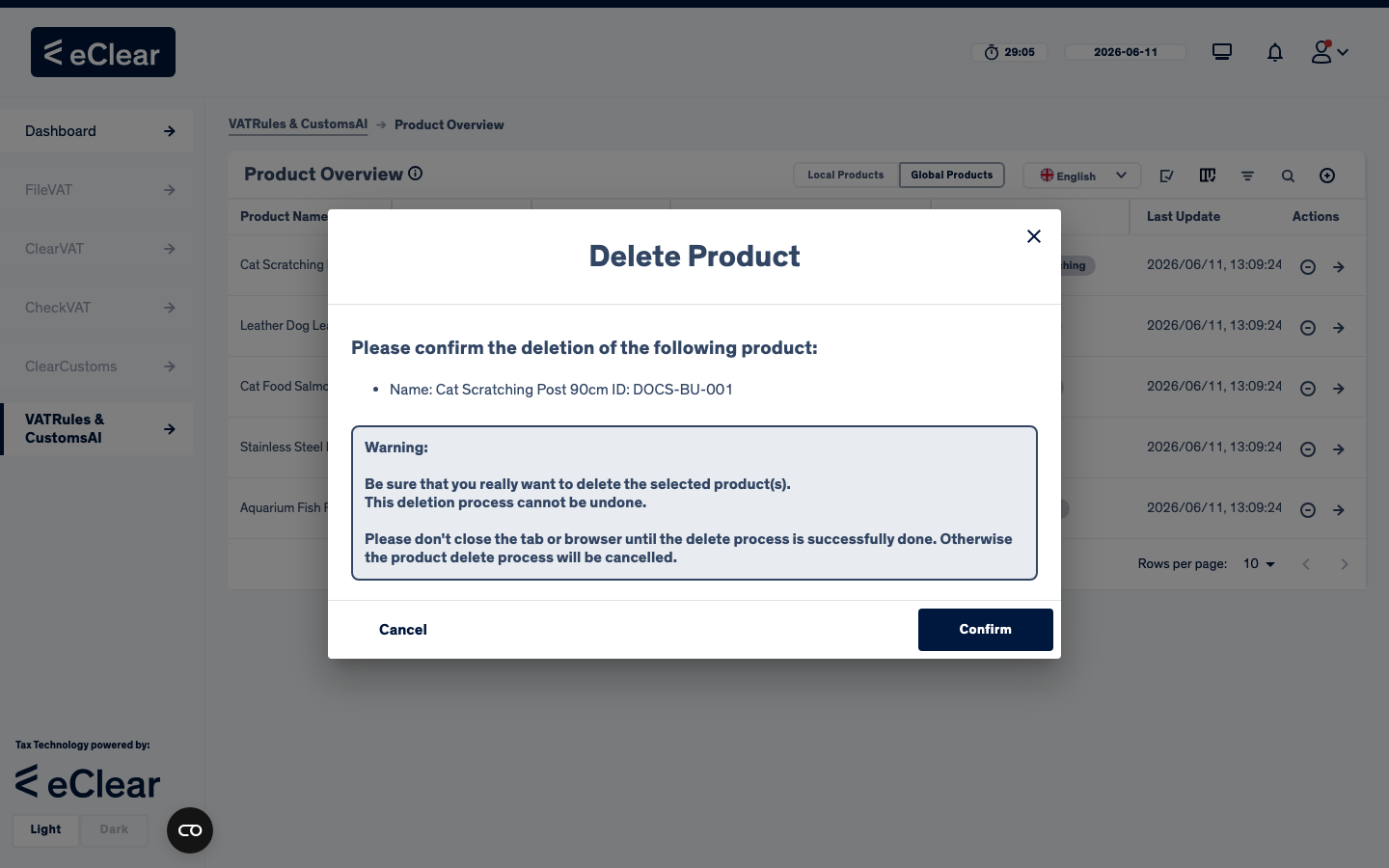
The Delete row action (bin icon) asks for confirmation first:
Danger
Deletion cannot be undone. The product and its assignment history are removed for good.